
Stretch Element Set and Light Spots
The new product version introduces Stretch Element Set: resize-ready elements with drawing rules, hitbox and light spot setup, and direct placement in the map editor.
Stretch Element Set and Light Spots
In the new product version, we introduce Stretch Element Set: a major workflow improvement that lets you resize elements with smart rules, while also configuring hitboxes and light spots directly from the editor.
Open the Element Set Editor
To start editing a tileset as an element set:
- Open Media Library
- Go to Tilesets
- Click Open With Element Set Editor
Inside this editor, you can now manage:
- Hitboxes for collisions
- Light spots for dynamic lighting behavior
Drawing Rules: Repeat Axis, Edge Repeat, and 9-Slice
Go to Drawing Rules in the Element Set Editor. You will find:
- Repeat Axis
- Edge Repeat
- Frame 9-slice
These rules let you define how an element behaves when resized in the map editor.
Practical example
A few concrete examples from production maps:
- Repeat Axis: perfect for a wall, where the pattern repeats cleanly along one direction.
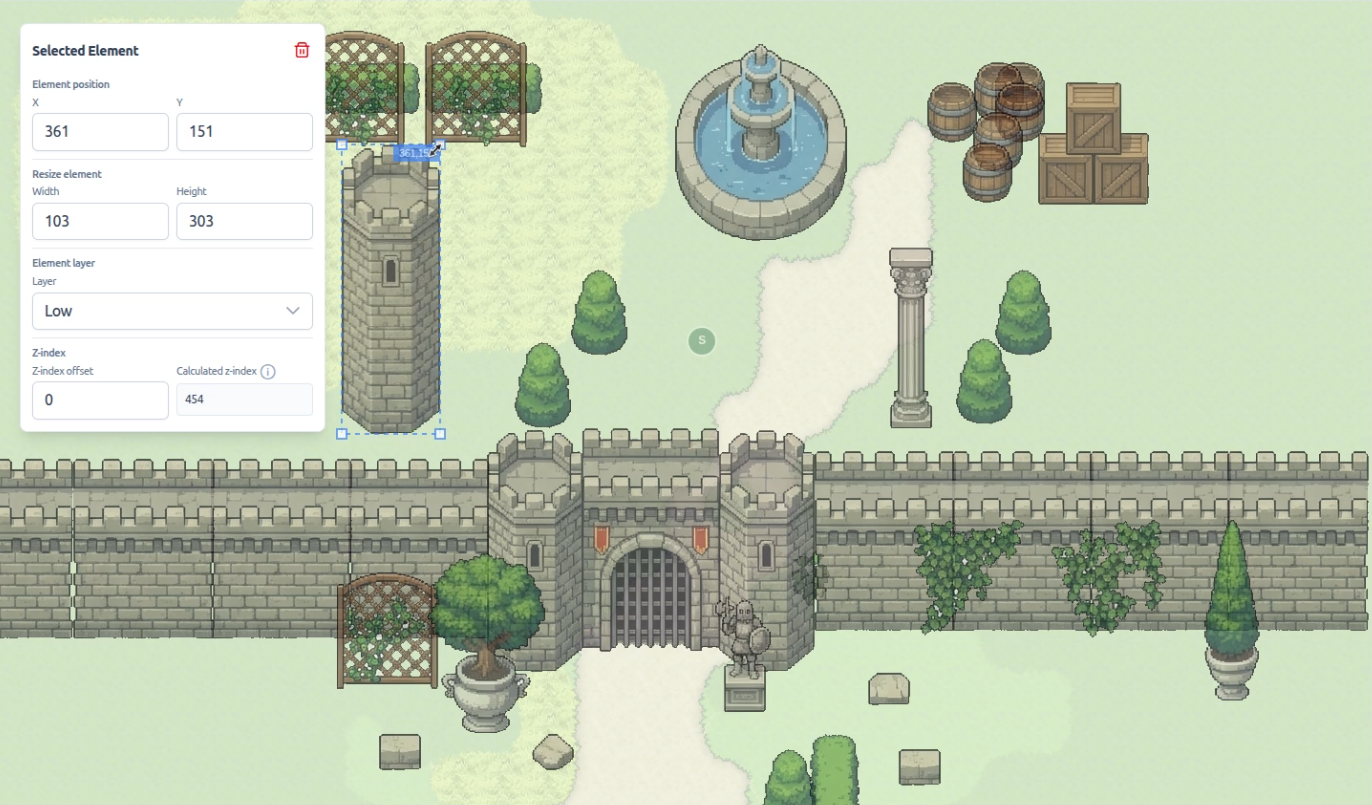
- Edge Repeat: useful for a guard tower, where borders and structure stay consistent while extending height/width.
- 9-slice: ideal for a signboard or a carpet/rug, where corners must stay intact and the center can stretch.
Once the rules are set, go back to the map editor, place the element, and simply resize it. The drawing behavior is automatically applied based on your rules.
Place and Resize in the Map Editor
After configuring drawing rules:
- Open the map editor
- Place your element on the map
- Resize it directly on the canvas
The element will adapt to the size using your Element Set drawing configuration.
Add Light Spots
You can also define light emission points per element.
- In Element Set Editor, open Light Spot
- Enable light rendering
- Place the yellow circle where the light source should be
- Set the radius
- Set the intensity (%)
This makes it easy to create torches, lamps, glowing crystals, or any decorative element that emits light, without custom scripting.