
Mastering the Map Editor: Essential Tips and Techniques for Efficient Map Building
Learn the essential techniques and shortcuts to maximize your productivity in the RPGJS Studio Map Editor. Discover multi-selection, brush customization, and time-saving workflows.
Mastering the Map Editor: Essential Tips and Techniques for Efficient Map Building
The Map Editor in RPGJS Studio is a powerful tool that allows you to build detailed maps with precision and control. While the basics are intuitive, mastering the advanced techniques and shortcuts will dramatically speed up your workflow. In this guide, we’ll explore the essential tips and tricks that will help you become more efficient at creating maps.
Multi-Selection: Working with Multiple Elements
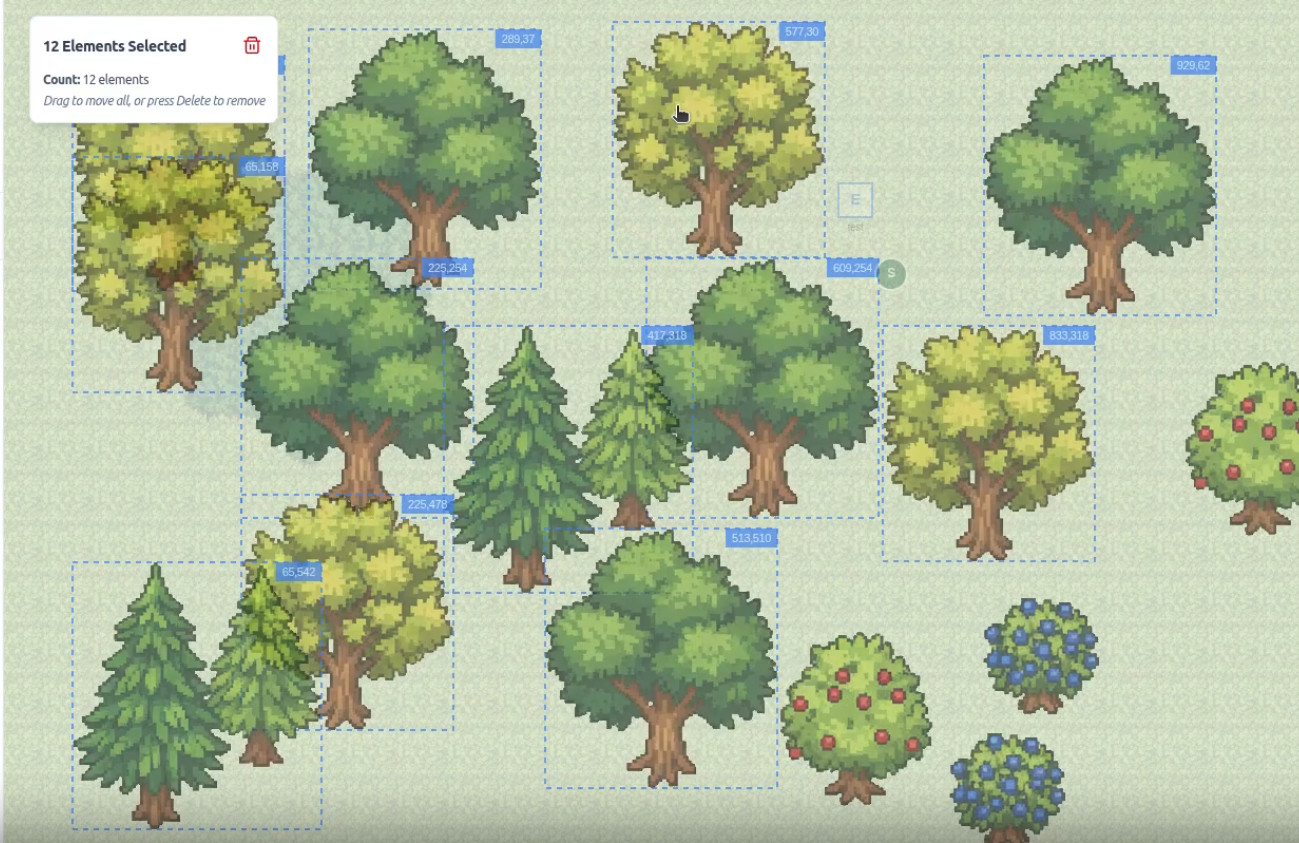
One of the most powerful features for efficient map building is the ability to select and manipulate multiple elements at once.
Basic Multi-Selection
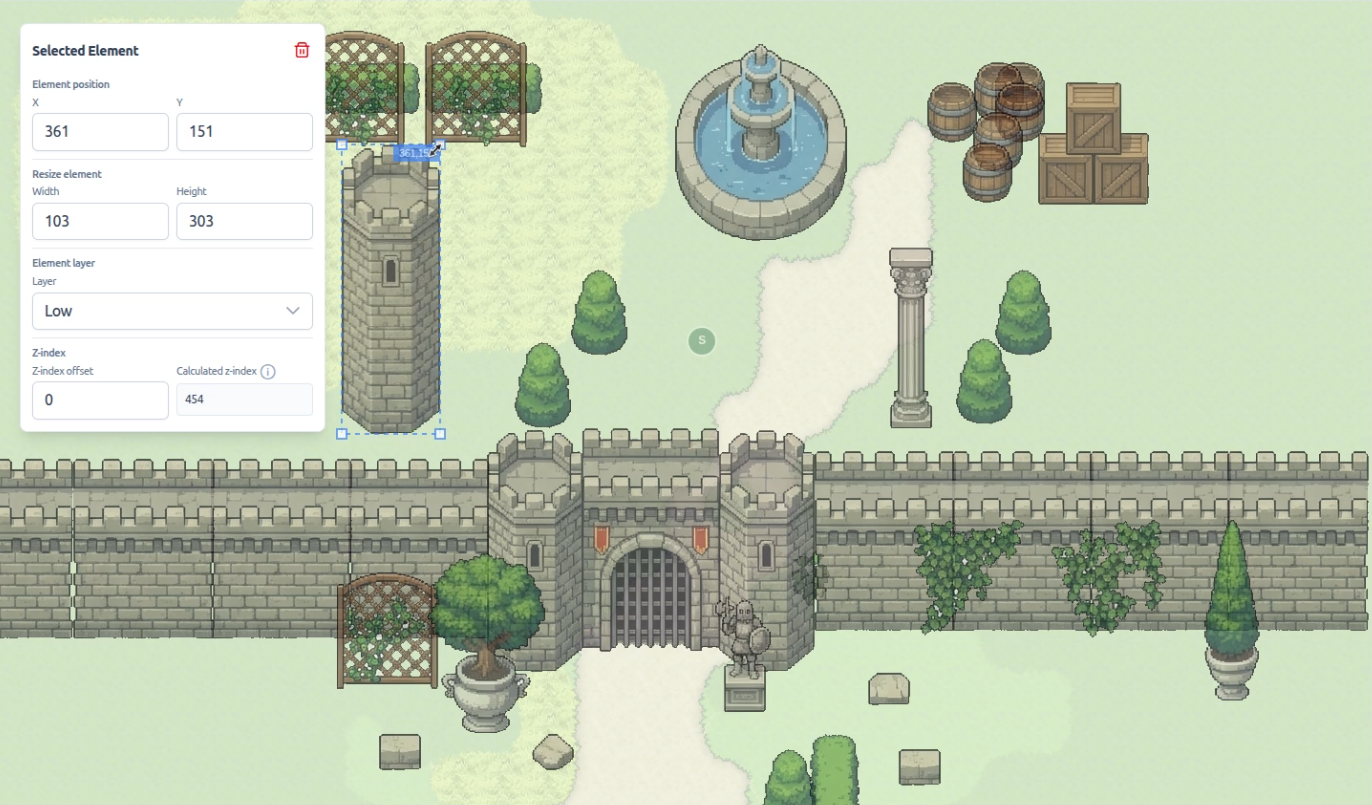
To get started, click on the Select tool (or press S), then click and drag to select multiple elements. This allows you to move or delete entire groups of elements in a single operation.
Advanced Selection Techniques
For more precise control over your selections:
- CTRL+Click on an element to remove it from your current selection
- CTRL+Click on an unselected element to add it to your selection
- Use this technique to fine-tune your selections after a drag-select
This is particularly useful when you want to select most elements in an area but exclude a few specific ones.
Quick Element Selection
Here’s a time-saving trick: double-click on any element to automatically select all similar elements on your map. This is extremely useful when you want to:
- Quickly select all instances of a specific element
- Create a brush from a selected element
- Reuse the same element across your map
Brush Customization: Speed Up Your Drawing
The brush tool is one of the most frequently used features in map building. Understanding how to customize it will save you hours of work.
Brush Size
When using the brush to draw elements or terrain, you can adjust the brush size to draw multiple tiles at once. This is perfect for:
- Quickly filling large areas with terrain
- Placing multiple elements across a zone
- Creating consistent patterns and layouts
Simply adjust the brush size slider before drawing to cover a larger area in a single stroke.
Random Brush: Add Natural Variation
The Random Brush is a game-changer for creating organic, varied landscapes. Here’s how to use it:
- Select multiple elements (use CTRL+Click on the left panel to select several different elements)
- Enable the Random option in the brush settings
- Draw on your map
The Random Brush will randomly place one of your selected elements each time you click or drag, creating natural variation. This is perfect for:
- Forests and vegetation: Mix different tree types for a realistic look
- Rocks and debris: Create varied rocky areas
- General decoration: Add visual interest without repetitive patterns
Combining Brush Size and Random
For maximum efficiency, combine both techniques:
- Select multiple elements for variety
- Set a larger brush size for coverage
- Enable Random mode
This allows you to quickly fill large areas with varied, natural-looking elements—perfect for creating forests, grasslands, or other organic environments.
Terrain Drawing Workflows
The brush tool isn’t just for elements—it’s equally powerful for terrain painting.
Quick Terrain Painting
You can use the brush with terrain tiles just like with elements:
- Select a terrain tile
- Adjust the brush size for larger areas
- Enable Random mode with multiple terrain types for natural transitions
- Paint your map quickly and efficiently
This dramatically speeds up terrain creation compared to placing individual tiles one by one.
Essential Keyboard Shortcuts
Mastering keyboard shortcuts will make your workflow significantly faster. Here are the essential ones:
Navigation Shortcuts
- H - Activate the Hand tool for panning the map
- Space + Drag - Alternative way to pan the map (hold Space and drag with your mouse)
The Hand tool is useful when you need to navigate large maps, but you can also pan at any time using Space, which is often faster.
Tool Shortcuts
- S - Switch to Select tool
- V - Switch to Brush tool
- CTRL+S - Save your map (at any time)