Dynamic Messages and Player Input in RPGJS Studio
Insert player properties and database variables into message blocks, then collect and reuse typed answers directly from Show Text.
Dynamic Messages and Player Input in RPGJS Studio
Dialogs are more useful when they can react to the current player. RPGJS Studio can now insert player properties and database variables into message blocks, then ask the player for a written answer without leaving the dialog.
You can greet a player by name, display their current HP, ask for an age, collect a longer biography, or request any other written interaction. The answer is stored in a variable, ready to be displayed in another message or used by the rest of the event.
Insert Variables into Messages
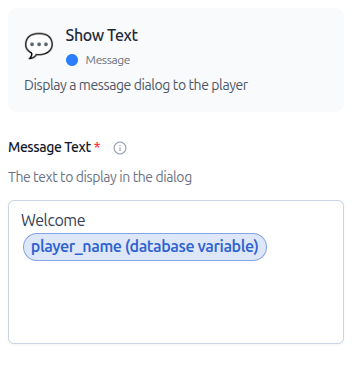
Message fields are no longer limited to fixed text. Type { while editing a compatible field to open the variable picker. You can then select either a property of the current player or a variable from your project database.
Player properties include useful values such as:
- name and ID;
- level and experience;
- HP, SP, and gold;
- maximum HP and SP;
- current map position.
Database variables are loaded from the project and shown by name. This lets a message reuse values created by previous event blocks, including answers collected from the player.
Variable insertion is available in:
- Show Text messages;
- Show Choices questions and choice labels;
- Show Notification messages;
- Call Shop messages;
- Show Animation Text content.
At runtime, Studio replaces each inserted variable with its current value. The same event can therefore display different text for each player and each stage of the game.
Ask the Player a Question inside Show Text
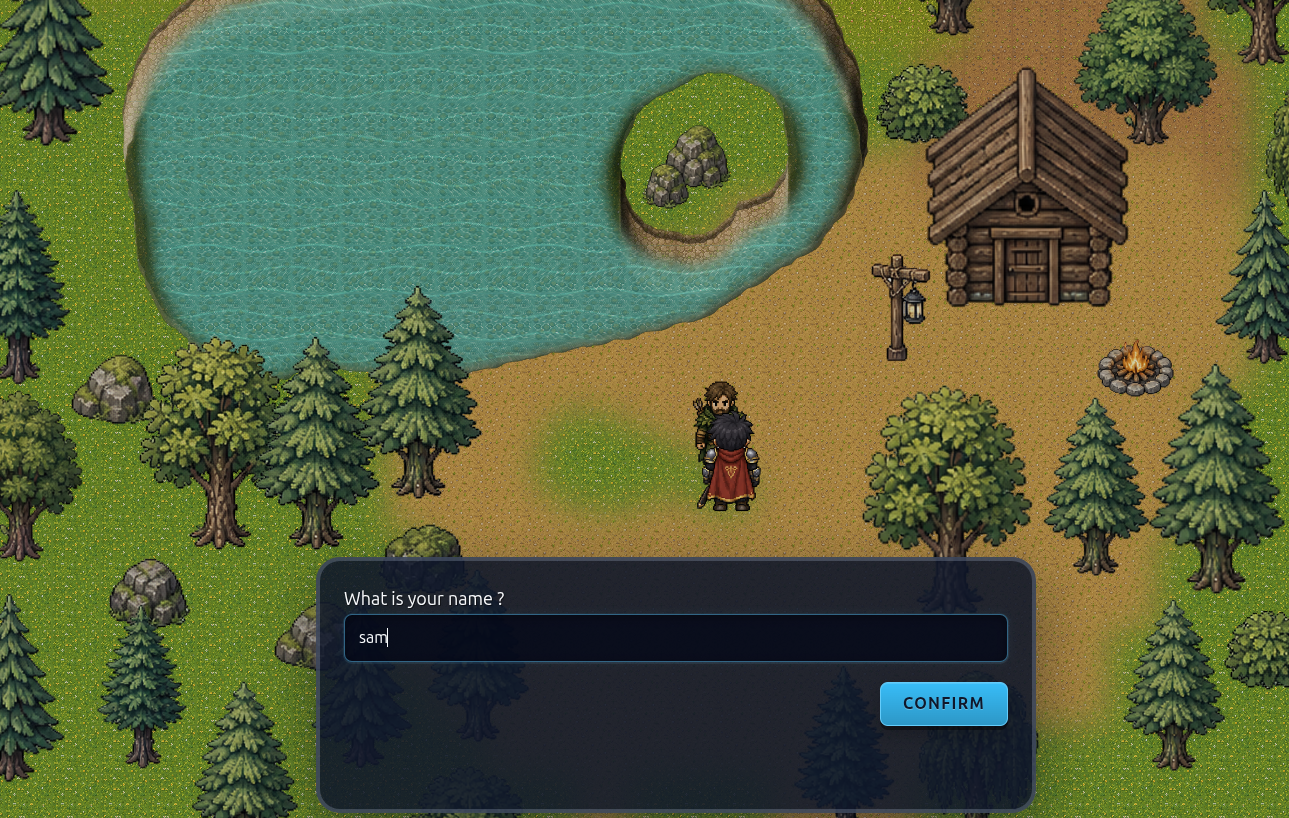
The Show Text block now has an option to display a form control directly below its message. The dialog stays on screen while the player enters a response, so the question and answer remain part of the same conversation.
The available controls cover several common interactions:
- a text input for a name or short answer;
- a number input for an age, quantity, or numeric value;
- an email input when the game experience needs an email-shaped value;
- a password input when the answer should not remain visible on screen;
- a textarea for a biography, message, character description, or other multiline response.
You can customize the placeholder, default value, confirmation label, cancellation label, and whether the Cancel button is displayed. Text fields support minimum and maximum lengths. Number fields support minimum, maximum, and step values. A textarea can also define its number of visible rows.
Validation is handled while the dialog remains open. Text and textarea answers are stored as strings, number answers are stored as numbers, and cancelling returns a null value.
Store and Reuse the Answer
When input is enabled, Show Text asks you to select a database variable. RPGJS Studio stores the submitted value in that variable automatically; no separate assignment block is required.
For example, a character introduction can be built in three steps:
- Create a database variable named
Player name. - Add a Show Text block with the question “What is your name?”, enable input, and select
Player nameas the destination variable. - Add another Show Text block, type
{, and insertPlayer nameinto “Nice to meet you, …”.
The first dialog collects the answer. The second dialog reads the stored variable and immediately personalizes the conversation.
RPGJS player variables persist with player state and travel across map transitions. This makes the workflow useful beyond a single conversation: an answer can become part of later quests, dialogs, conditions, or player progression.
Practical Uses
These two features work especially well together. They make it possible to build interactive sequences without custom scripts:
- ask for the player or character name, then reuse it throughout the game;
- collect a role-play answer and display it in a later conversation;
- request a quantity and branch the event according to the stored number;
- create a password or secret-word interaction;
- let the player write a short profile, note, or message;
- display live stats and quest values inside dialogs, notifications, choices, shops, and animations.
Because variables are selected from the editor, creators do not need to remember a template syntax or manually connect the dialog result to player storage. The event remains visual from the question to the reuse of the answer.
More Interactive Events, Less Custom Code
Dynamic message variables make existing blocks adapt to game state. Input inside Show Text completes the loop by letting the player create new state during a conversation.
Together, they turn a static sequence of messages into an interactive workflow: display current information, collect an answer, store it, and reuse it anywhere the event system supports variables.
For the underlying RPGJS behavior, see the official documentation for dialog inputs, GUI commands, and persistent player variables.